Befundo
All guidesEveryone

On every device

Befundo on a computer, in a phone's browser, and in the apps for iPhone, iPad, iPhone Duo and Android — what each one looks like, where a class's pages are on each, and what is deliberately different. It is one account everywhere: nothing you do on one needs doing again on another.

What you can use today

One account and one set of classes, whichever screen it is on.

1
A computer, or any phone's browser — today
Befundo is a website first. Sign in at the same address on a computer, a tablet or a phone and everything is there; nothing is missing because you are on a small screen, and nothing needs installing.
2
Android is on Google Play; the iPhone and iPad app is coming
There is an app for iPhone — which is also the iPad and iPhone Duo app — and one for Android. The Android app is on Google Play; the iPhone and iPad app is coming to the App Store. The pictures below are of the apps as they are.

The Android app needs Android 8 or later; the iPhone and iPad app will need iOS 18 or later.
3
The phone is for your day; the desk is for running things
Every device shows your day, your children, your classes, messages, notifications, to-dos and the diary, and joins a live class. A few things stay on a computer on purpose: choosing and paying for a plan, and setting a class up — its description, its price and the day and time it repeats. The FAQ has the longer answer.
4
In English, Spanish or French
Choose under Account → Language on a computer, or Me → Language in the app. On Android the app switches straight away. On an iPhone or iPad the app's menus follow Settings → Apps → Befundo → Language, a row iOS shows only once the phone has more than one language under Settings → General → Language & Region. Open Settings under Me → Language takes you there. The apps speak Spanish and French from version 0.1.0 (1086).

On a computer

The whole product, with a menu down the side.
1
Your dashboard
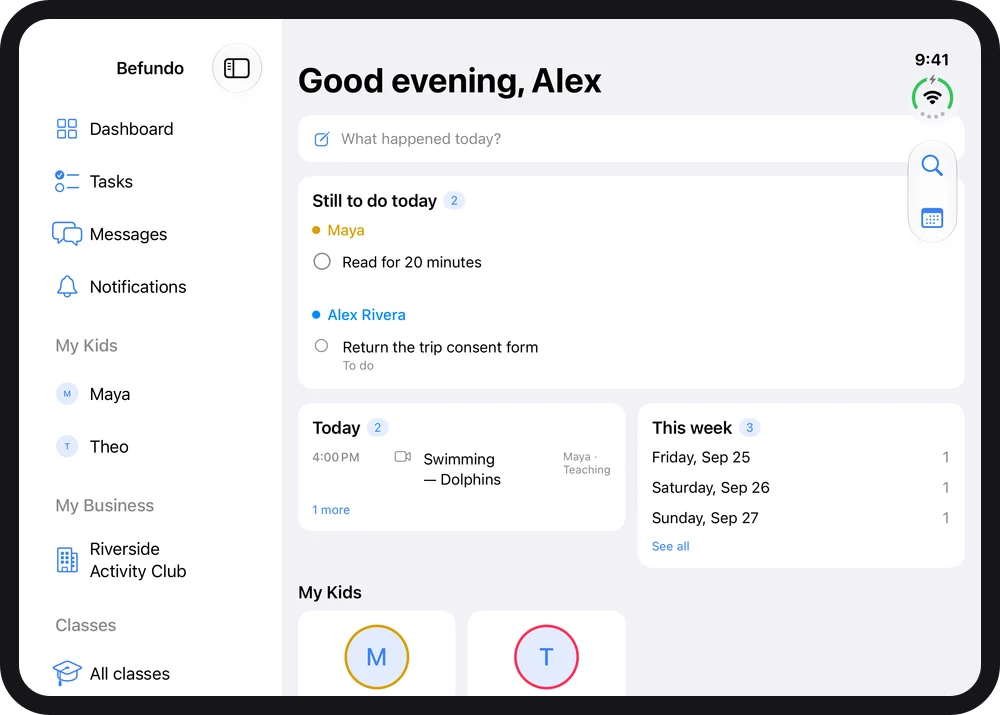
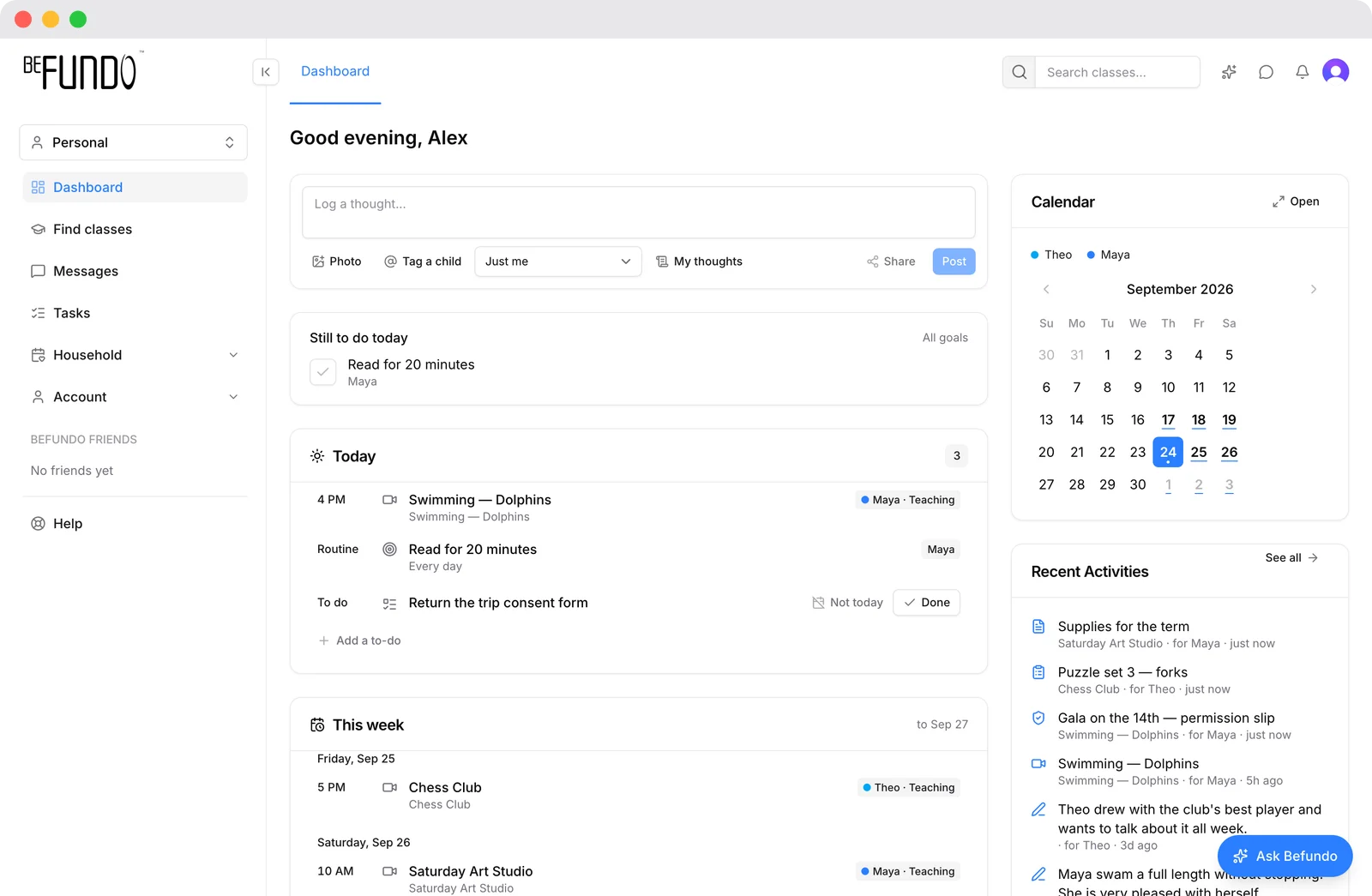
The day in one place: what is still to do, today's classes and routines, the week ahead and a calendar colored by person. The menu on the left is the only one of these screens with a sidebar you can always see, and Ask Befundo sits in the corner of every page.
The dashboard on a computer
2
A class: Board, Course, Work and Meetings
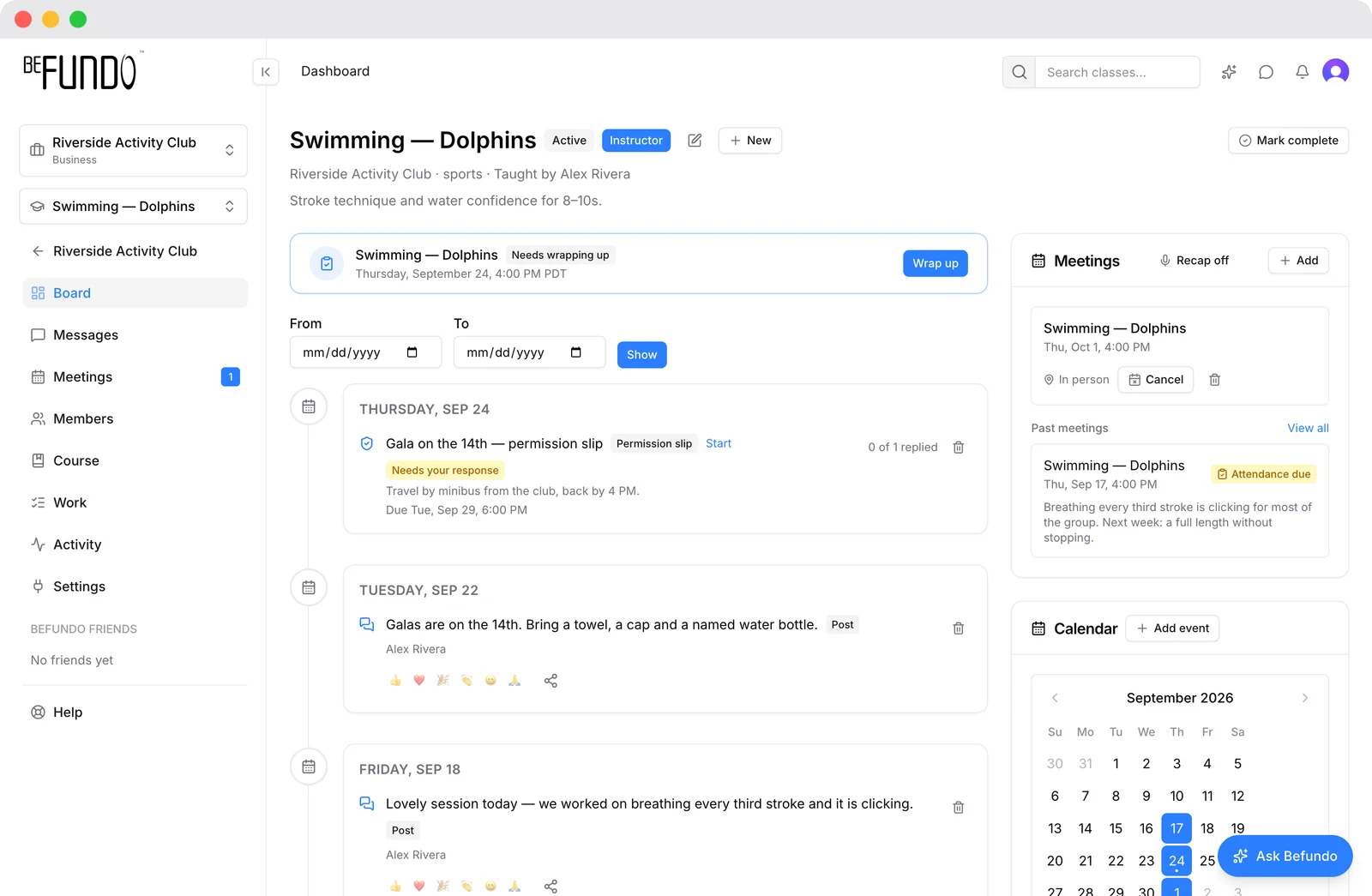
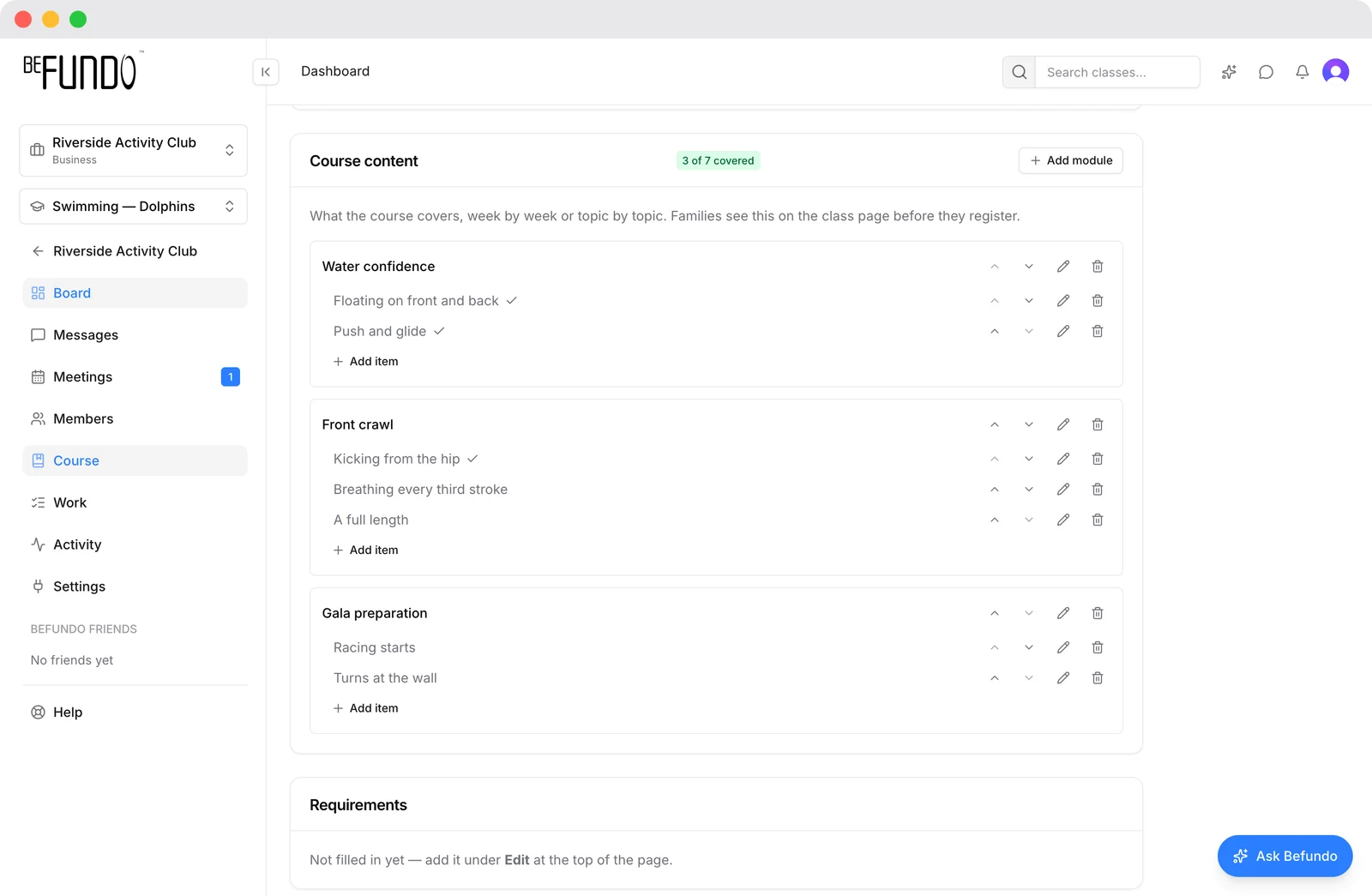
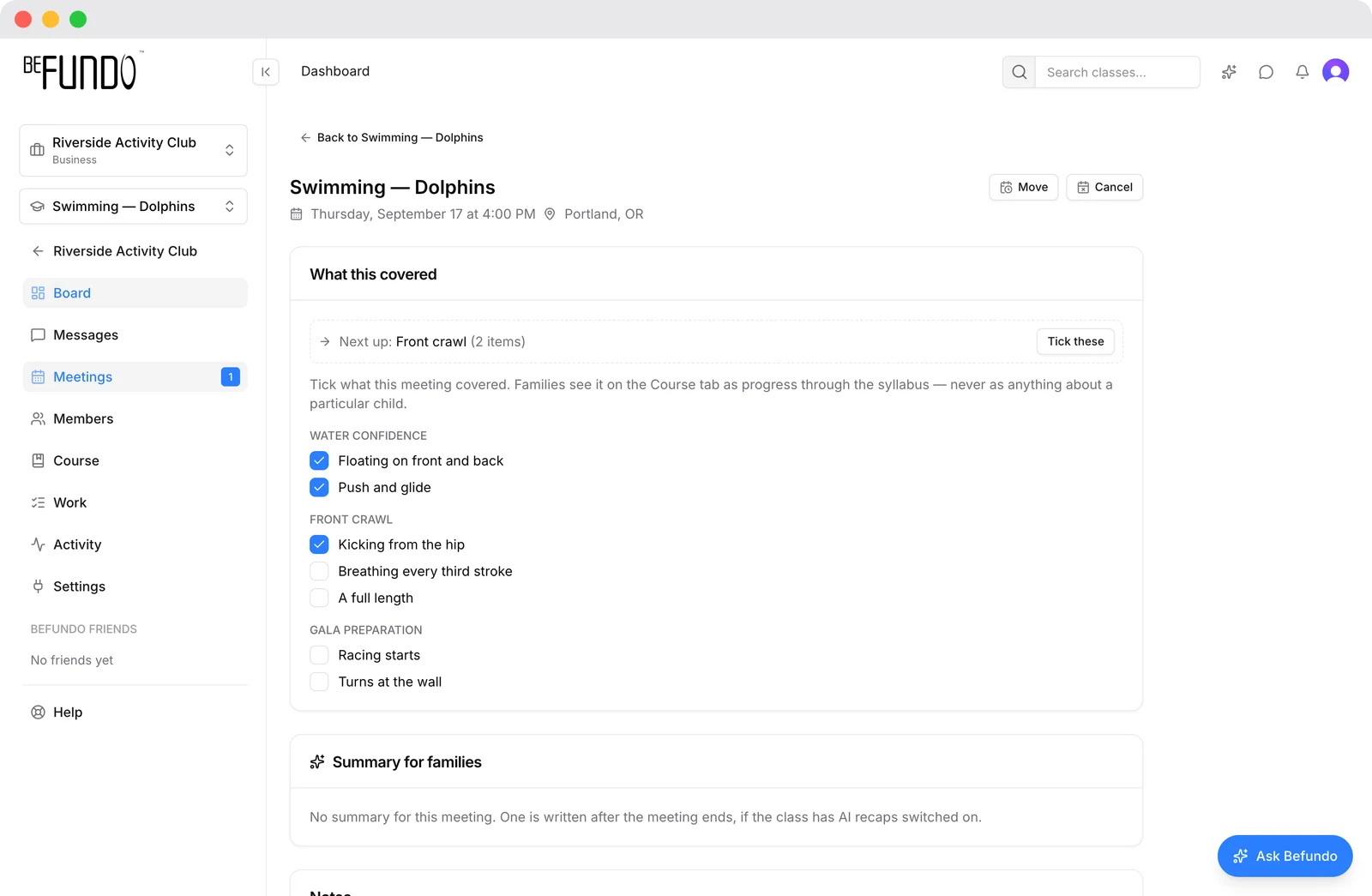
Open a class and its pages are down the left: Board for notices and permission slips, Course for what the class covers and how far it has got, Work for anything set, and Meetings for each session — including what was covered and the teacher's note afterwards. These pictures are the teacher's view; a family sees the same pages without the controls.
A class board on a computer
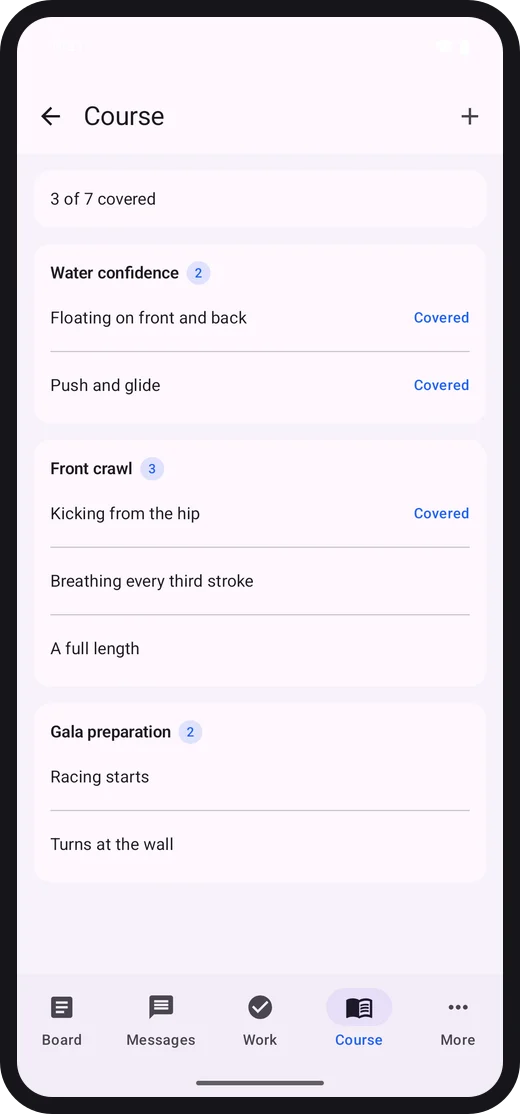
A class's course, three of seven topics covered
One meeting, with what it covered ticked

In a phone's browser

What every family can use today, with nothing to install.
1
The same pages, stacked
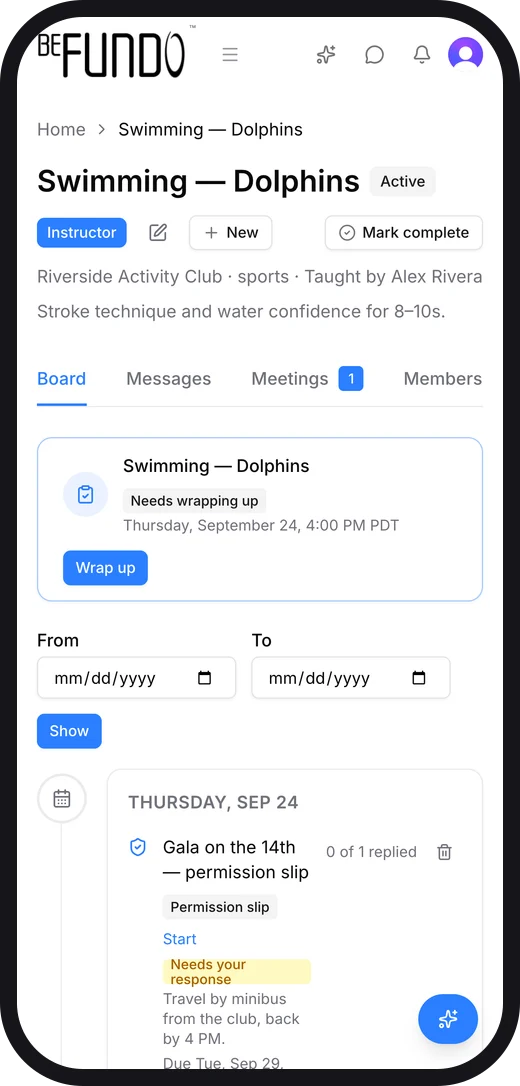
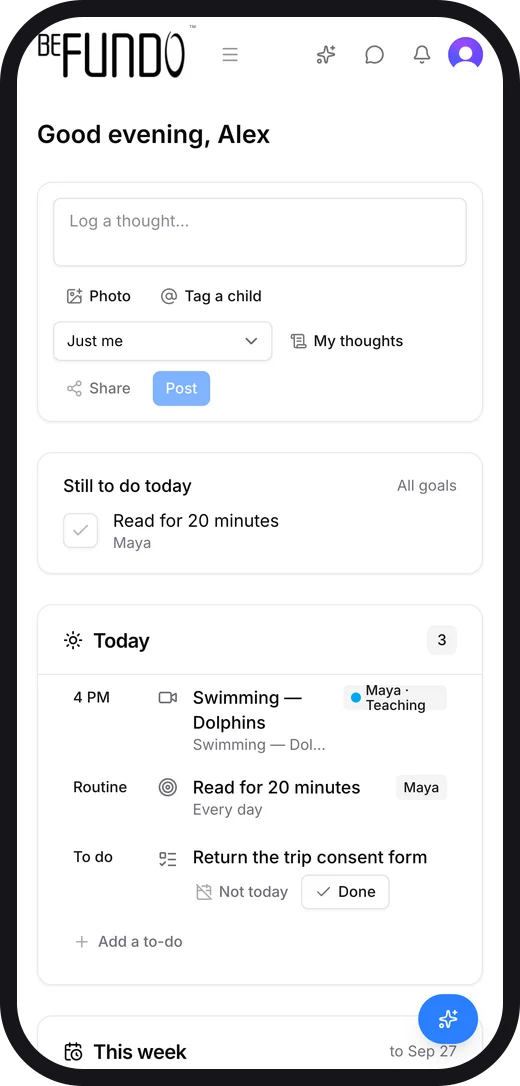
On a phone the menu folds behind the ☰ button and a class's pages become tabs along the top. Adding Befundo to your home screen from the browser's share menu makes it open like an app.
The dashboard in a phone's browser
A class in a phone's browser

iPhone

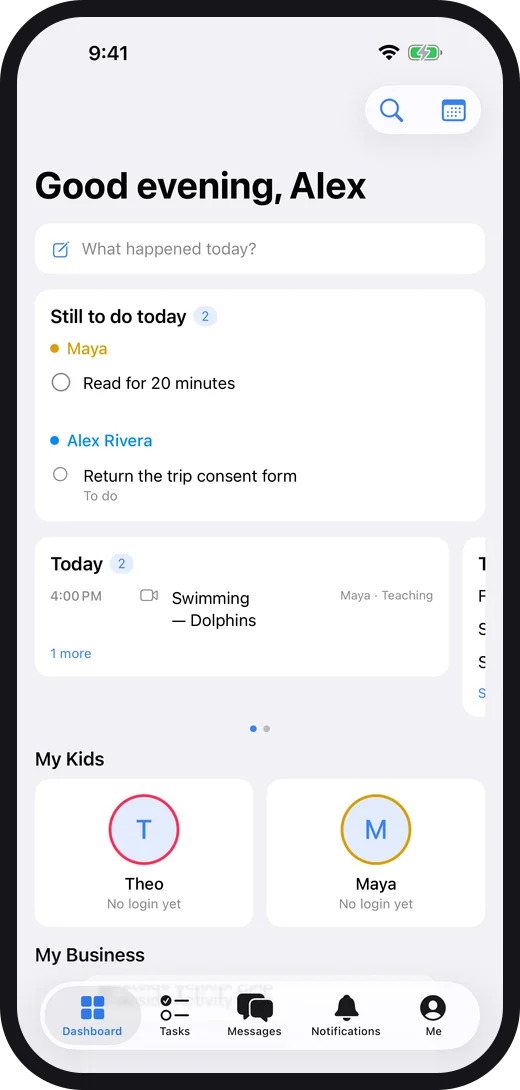
Five tabs along the bottom, and a class's pages under its own bar.
1
Dashboard, Tasks, Messages, Notifications, Me
The dashboard opens on what is still to do today, then today and this week, then your children. Everything that is not one of the five tabs — your classes, the diary, the journal, invitations, your profile — is under Me.
2
Open a class from Me → All classes, or from the dashboard
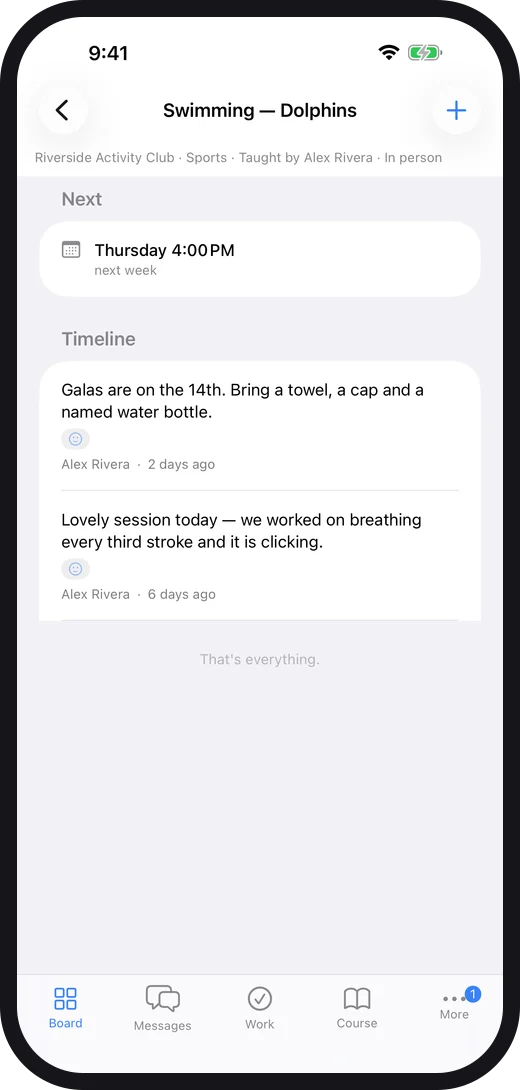
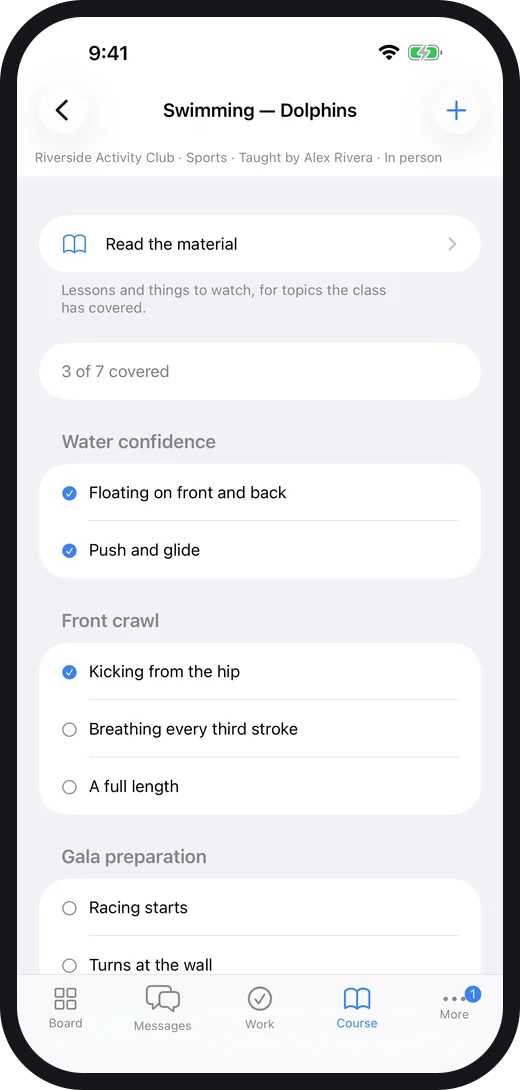
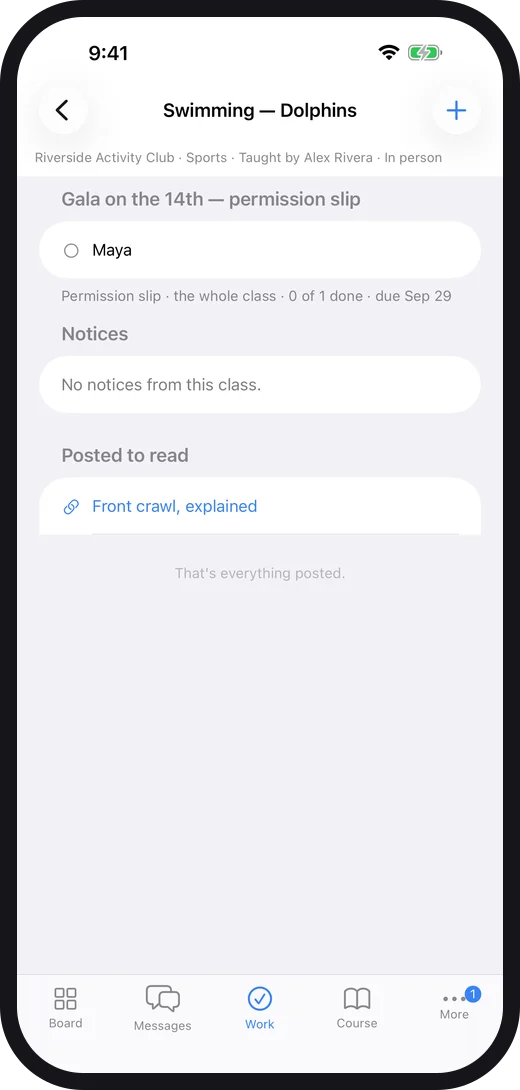
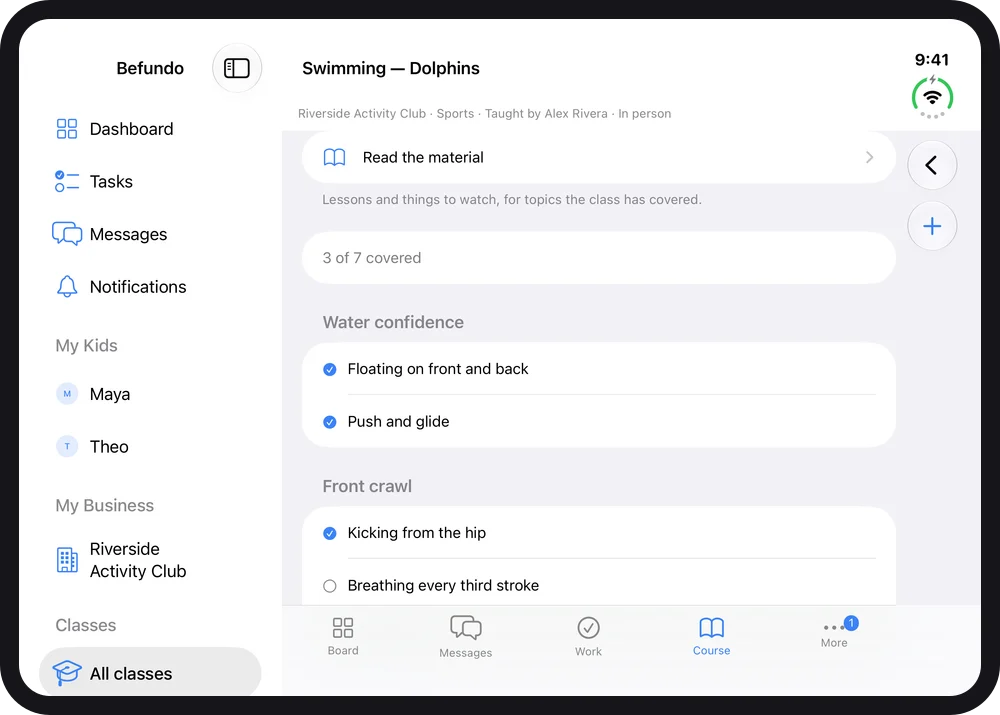
A class has its own bar at the bottom: Board, Messages, Work, Course, and More for Meetings, Members, Activity and Settings. Course shows the syllabus with what has been covered ticked; Read the material opens the lessons for the topics the class has reached.
The dashboard on iPhone
A class board on iPhone
A class's course on iPhone
A class's work on iPhone

iPad

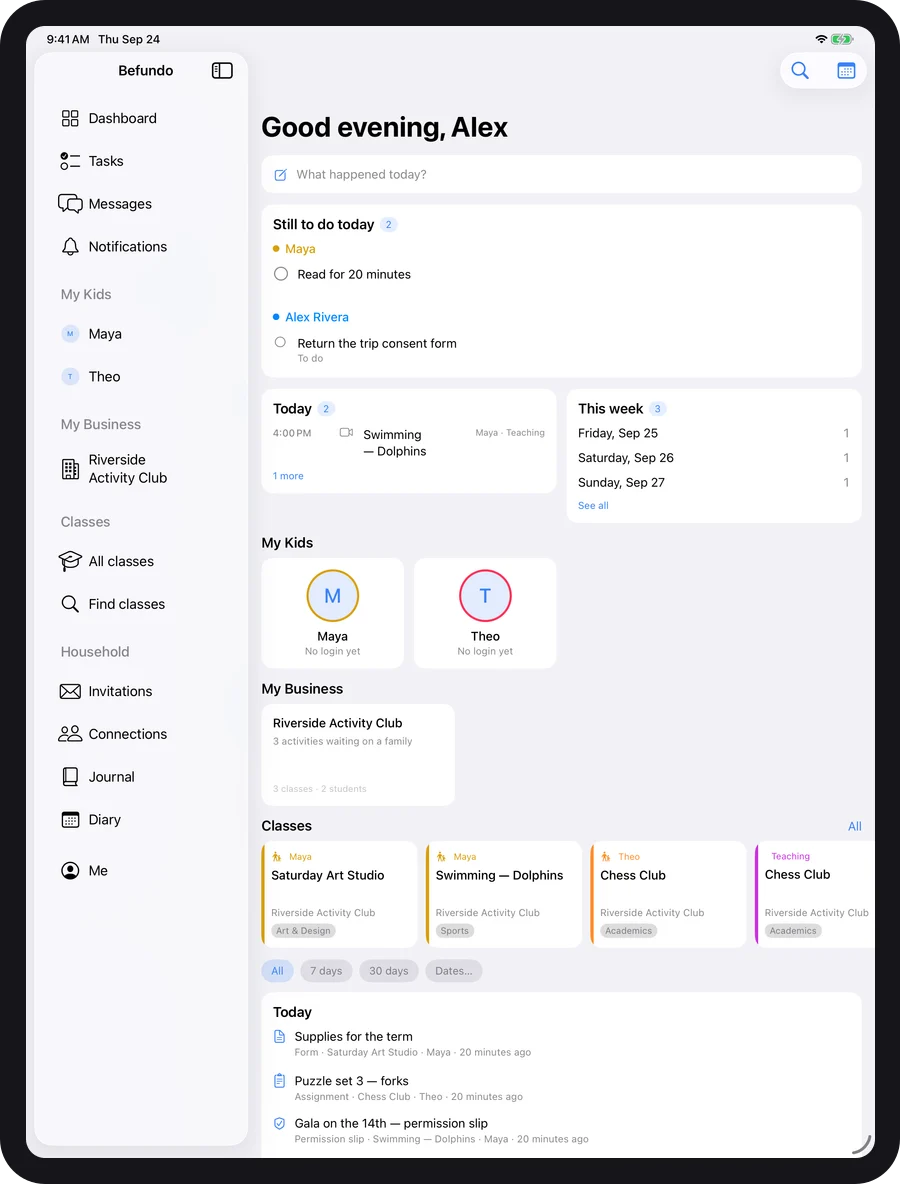
The iPhone app, laid out for the room it has.
1
A sidebar instead of tabs
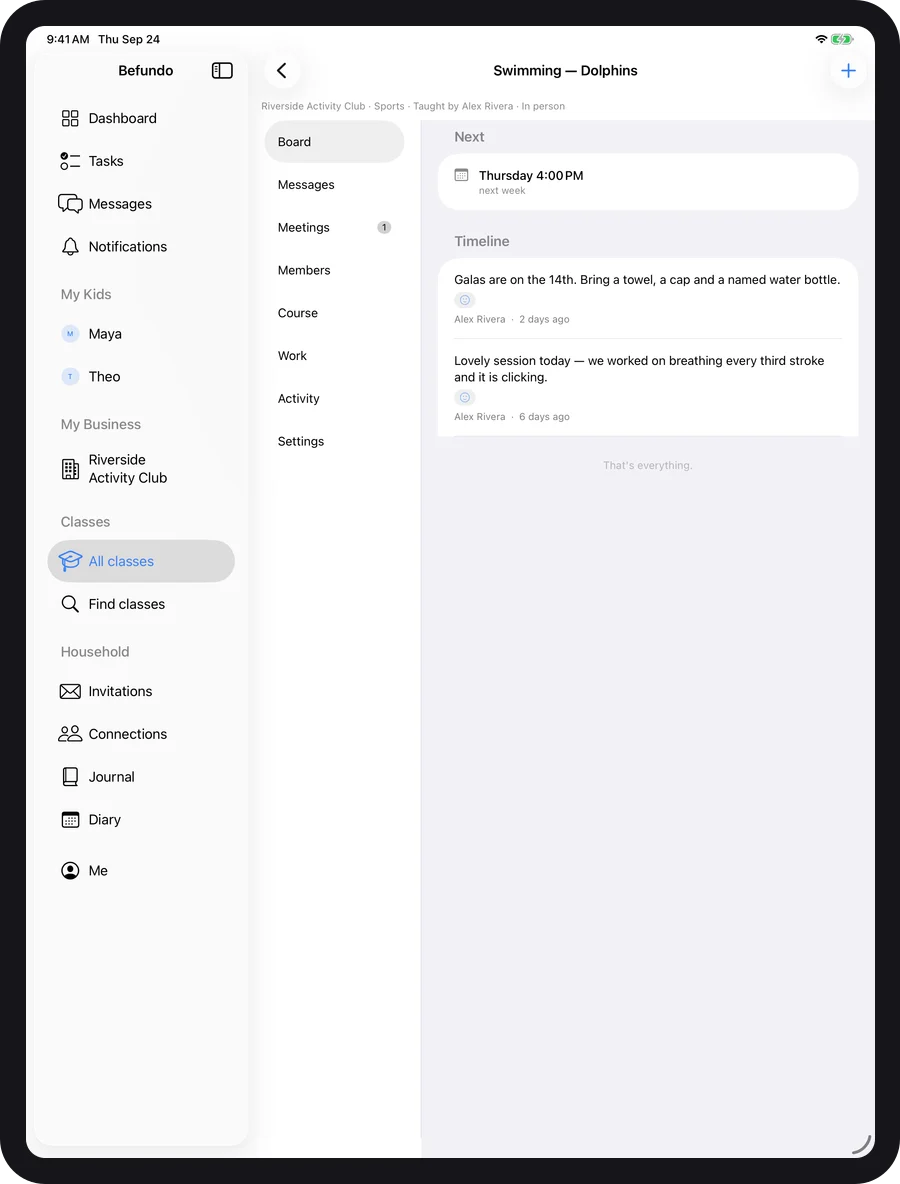
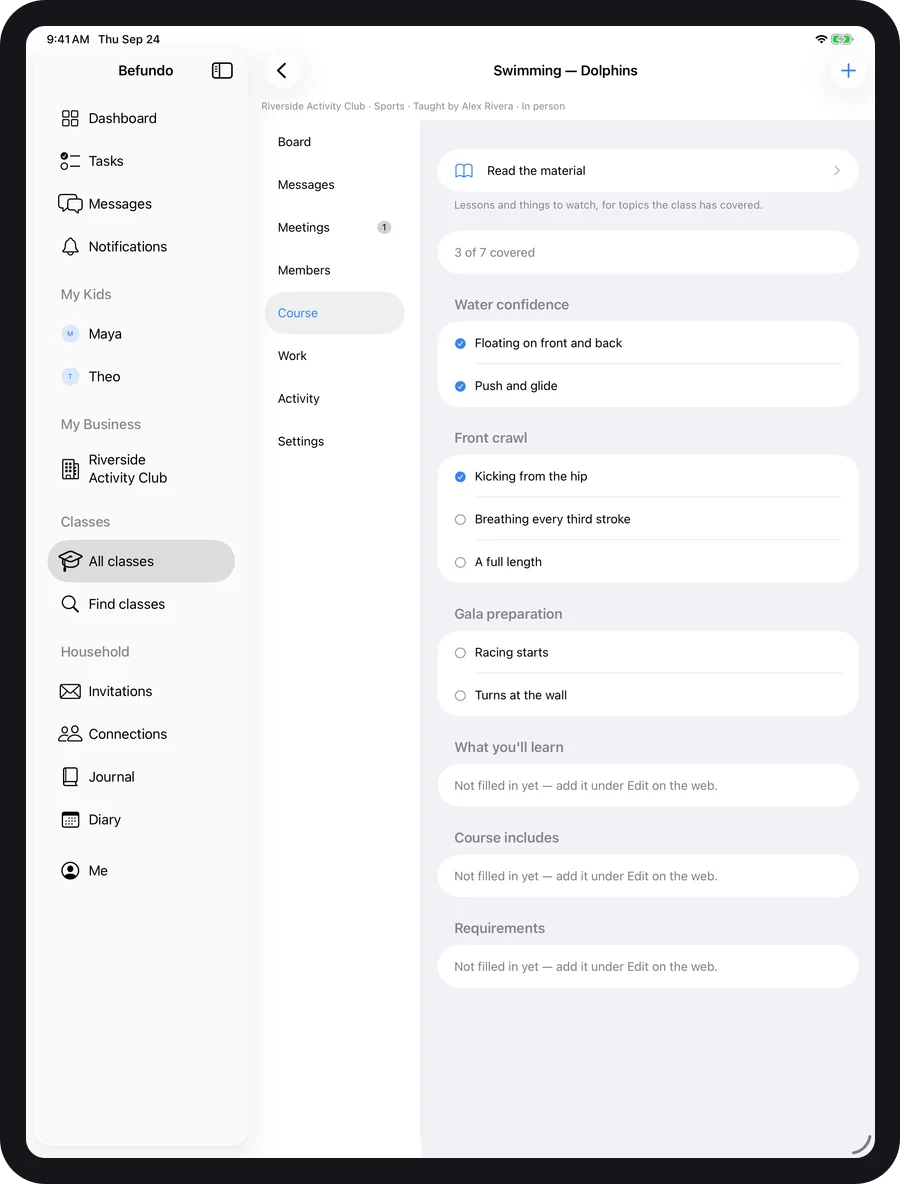
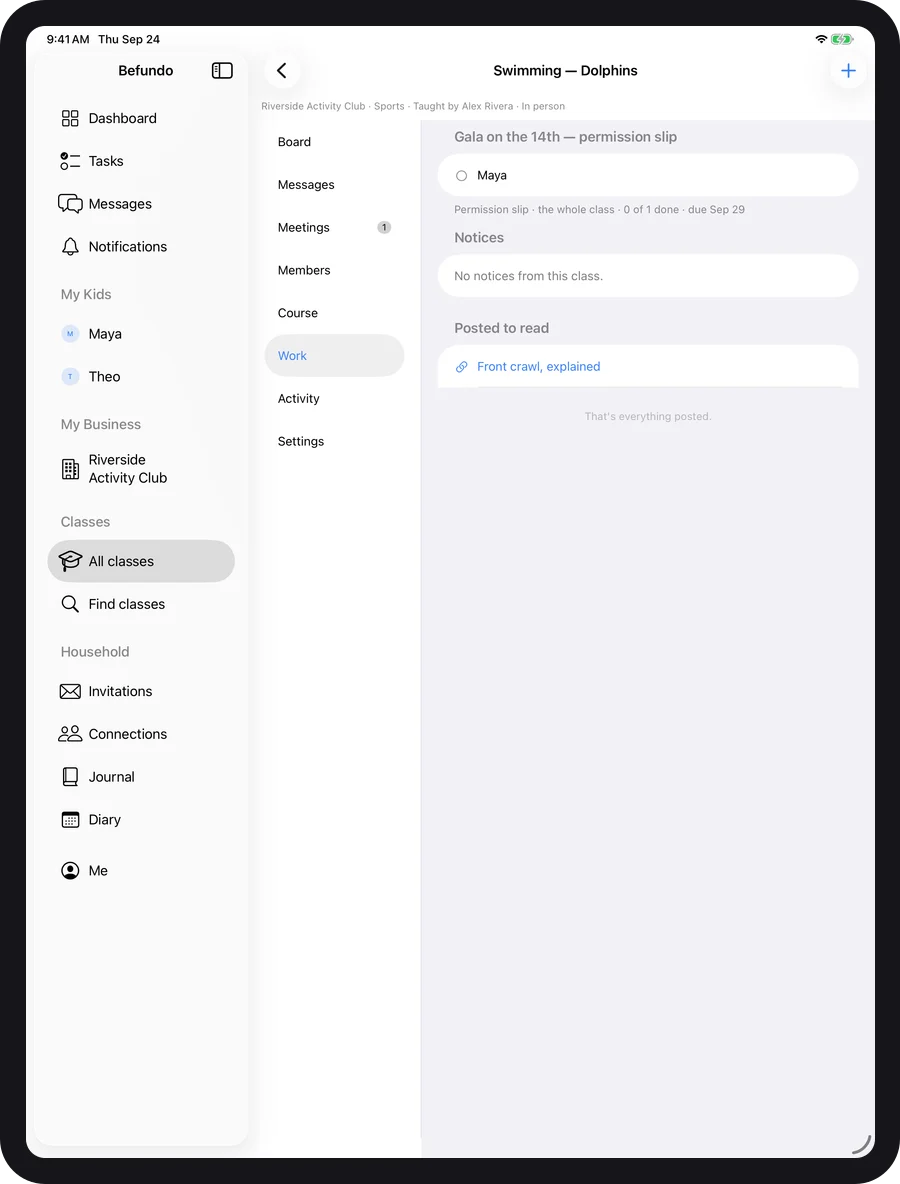
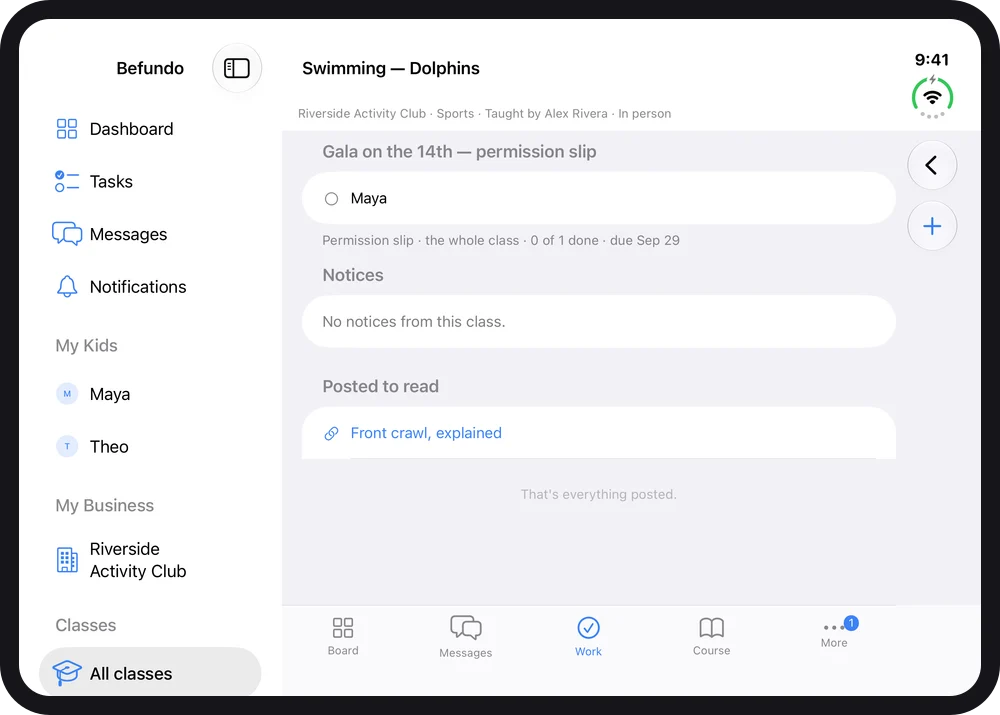
It is the same app as the iPhone's, not a separate download, but on a wide screen it draws a sidebar like the website's: your children, your business and your classes are listed down the left, and a class's pages sit in a column beside what you are reading. Turn it to portrait or use it in Split View and, when it gets narrow, it becomes the iPhone layout.
The dashboard on iPad
A class board on iPad
A class's course on iPad
A class's work on iPad
2
The pen, for a teacher
In a live class a teacher can draw on the shared whiteboard freehand, in six colors, and the room sees it as it is drawn. The iPad is where that is worth doing; a computer has the fuller toolbox of shapes, text and arrows.

iPhone Duo

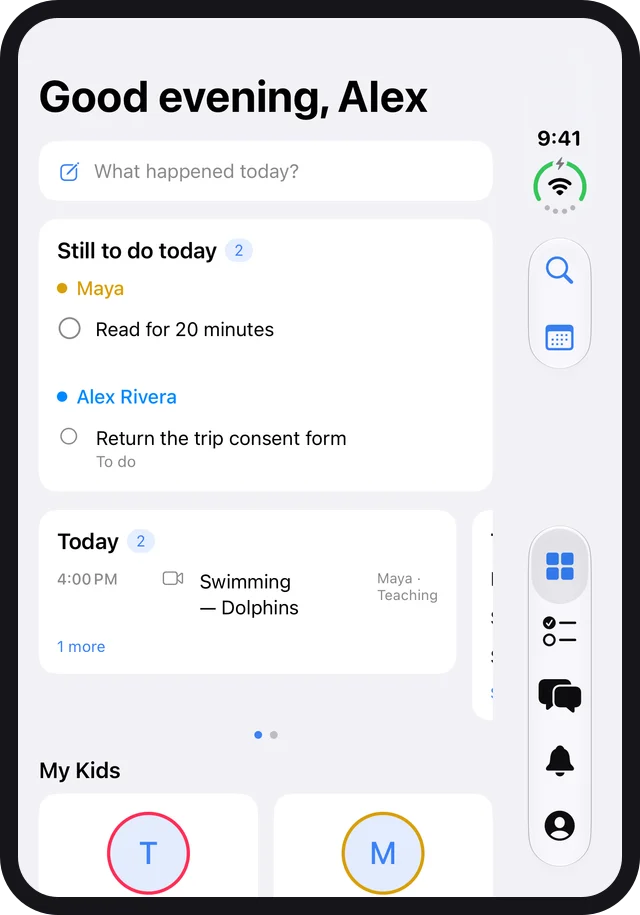
The iPhone app, on a phone that folds.
1
Folded it is a phone; open it is nearly a tablet
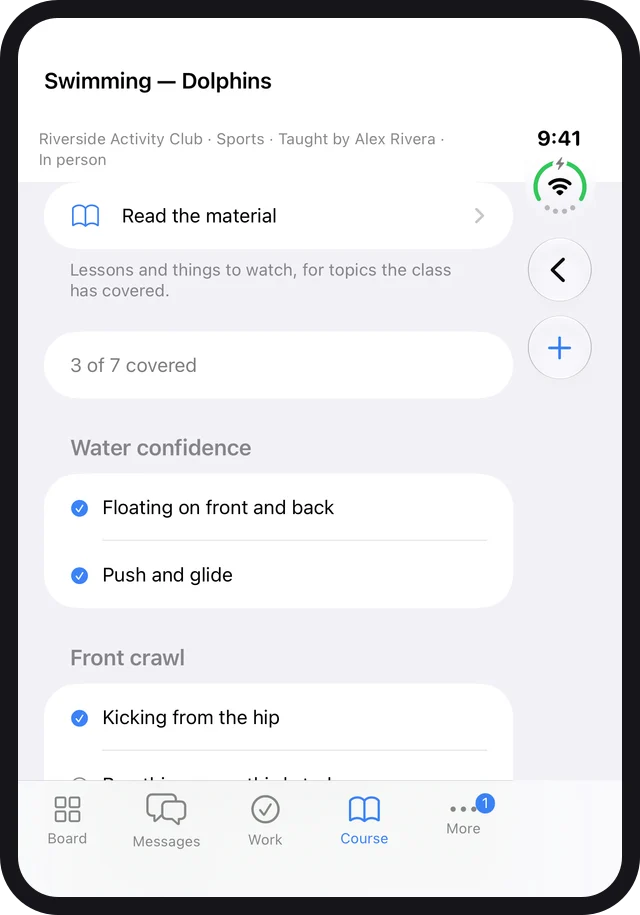
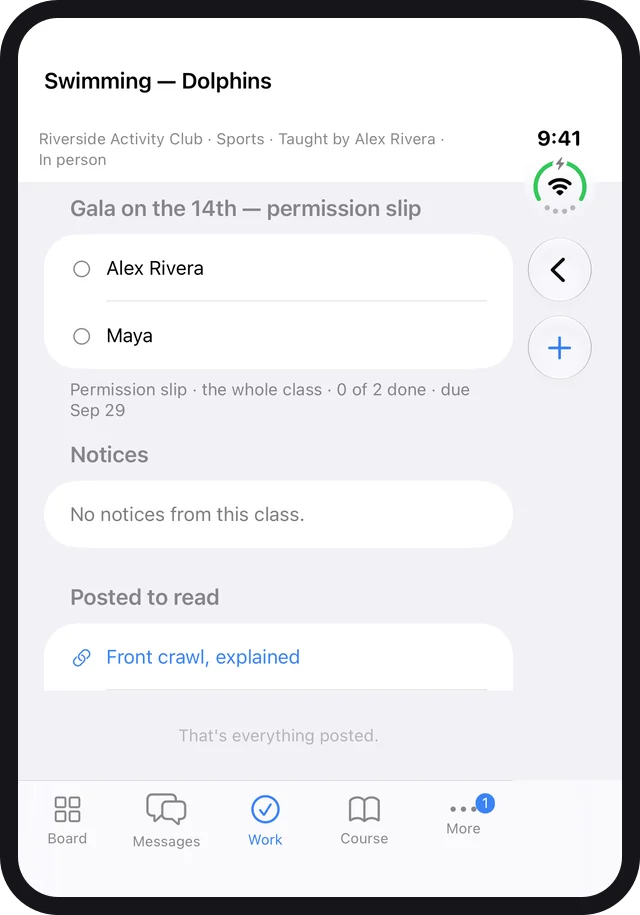
iPhone Duo runs the same app. Folded, the outer display is a phone: the tabs sit in a strip down the side, beside the camera, and a class keeps its bar at the bottom.
The dashboard on iPhone Duo, folded
A class's course on iPhone Duo, folded
A class's work on iPhone Duo, folded
2
Open, it has the iPad's sidebar
Unfolded, the inner display is wide enough for the sidebar, in either orientation: your children, your business and your classes down the left. A class keeps its own bar at the bottom, because the column beside the sidebar is narrower than an iPad's.
The dashboard on iPhone Duo, unfolded
A class's course on iPhone Duo, unfolded
A class's work on iPhone Duo, unfolded
3
Folding keeps your place
Open or close it, or turn it, and you stay in the same part of the app — the same class, and a live class stays connected. A screen you had opened further inside that page can close as the layout changes; the page itself does not.

Android

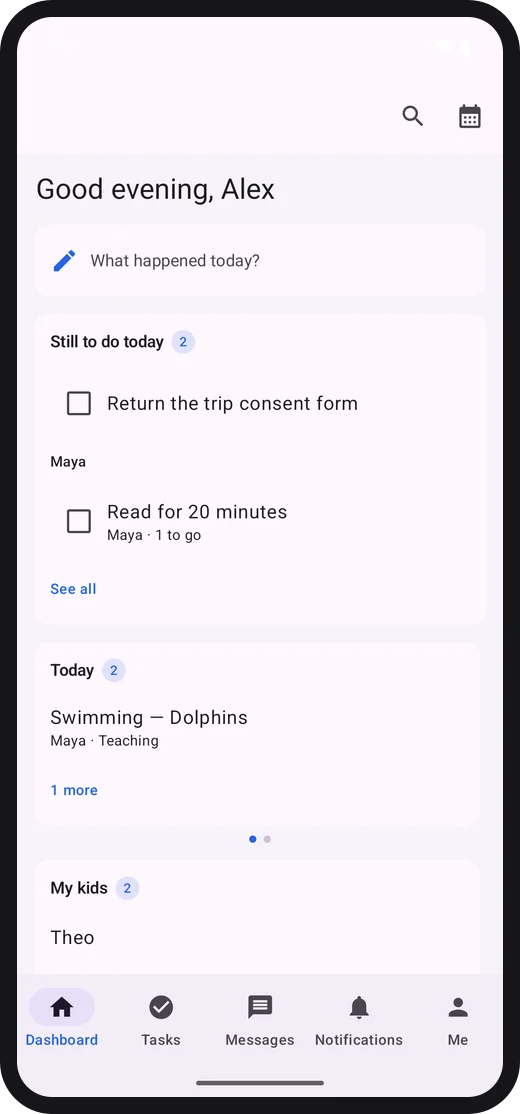
The same app as the iPhone's, built the Android way.
1
The same five tabs, and the same class bar
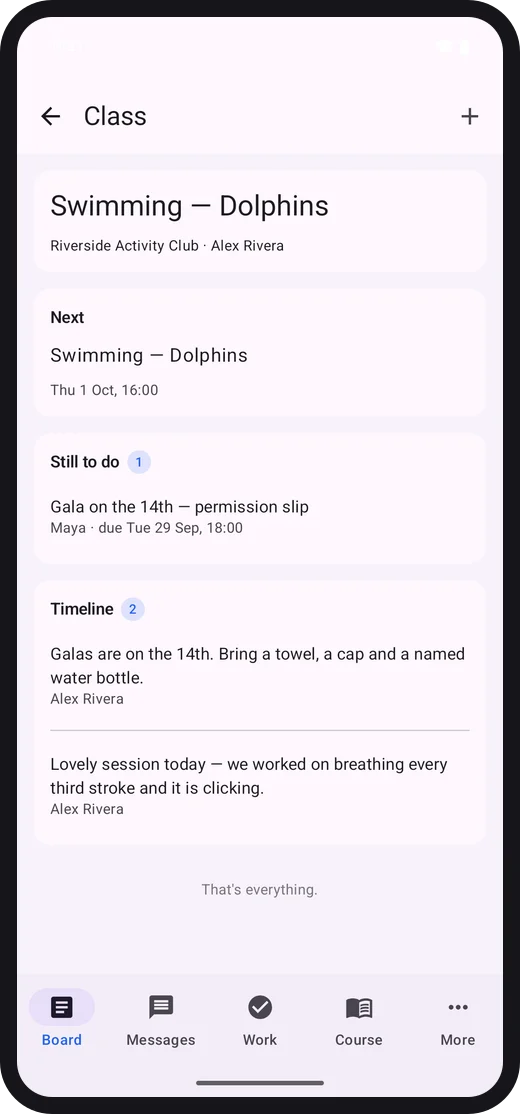
Dashboard, Tasks, Messages, Notifications and Me along the bottom, and a class opens on its Board with Messages, Work, Course and More beside it — the iPhone's layout, in Android's own controls. Your classes are under Me → All classes.
The dashboard on Android
A class board on Android
A class's course on Android
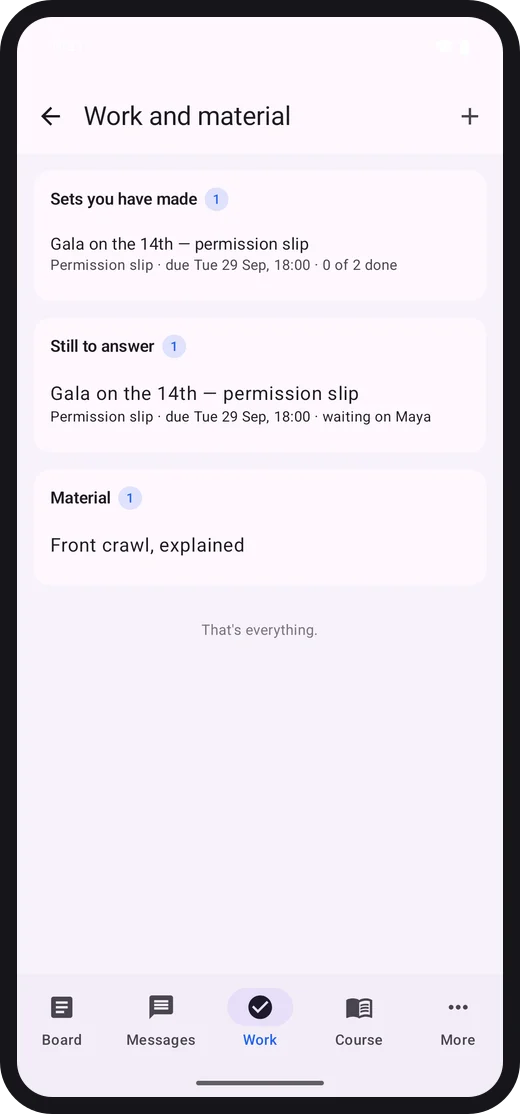
A class's work on Android
2
What is different, on purpose
There is no tablet layout: an Android tablet or foldable shows the phone layout, larger. And the whiteboard in a live class is for watching on Android — a teacher draws from a computer or the iPhone and iPad app.

When something looks wrong

What to tell us, so we can find it.

1
Say which device, and which version
In either app the version number is under Me → Profile, at the bottom. On the web, say which browser. Then use Help when signed in, or email the address on the support page.
Still stuck?

The FAQ covers what Befundo does and doesn't do, including the parts that aren't built yet.