 ™
™Put your classes on your own website
The Befundo team · July 13, 2026 · 3 min read
Families find you in more places than Befundo: your website, your social media, a flyer with a link. Befundo gives you two ways to be there. A public page with all your classes, and a widget that puts them on your own site.
The quick answer
- Your landing page is one address, befundo.ai/b/your-name, with your classes, your story and how to reach you.
- It lists your active classes automatically. Nothing to update when a class changes.
- The website widget shows your active classes on your own site, each linking to its class page.
- Both are off until you publish them.
Publish your landing page
- In your business menu, open Landing page.
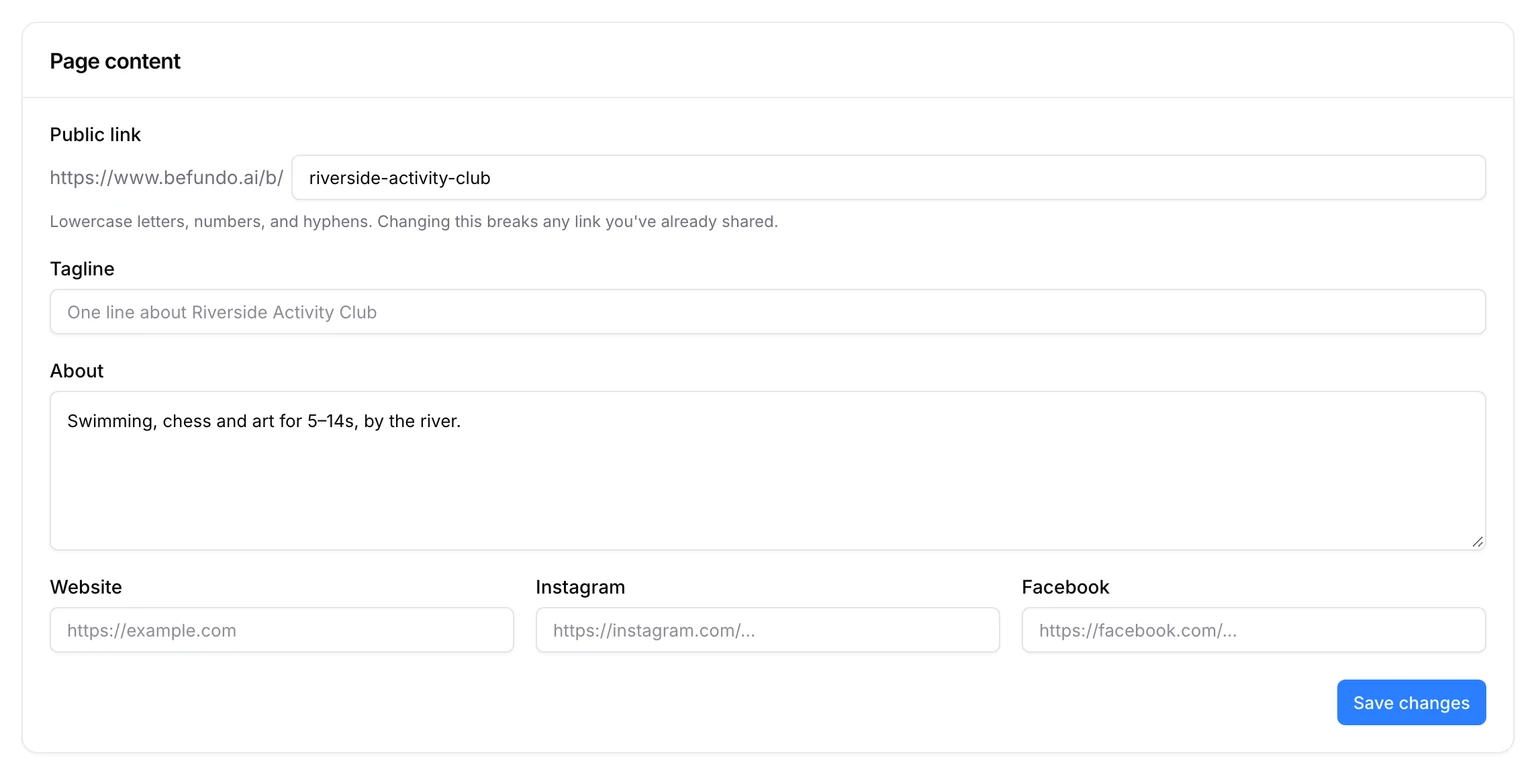
- Under Page content, choose your Public link. It's the part after befundo.ai/b/.
- Add a tagline, the About text, and your website, Instagram and Facebook. Press Save changes.
- Add photos (the first becomes the banner) and your logo.
- Switch on Published under Public page, then Copy link.
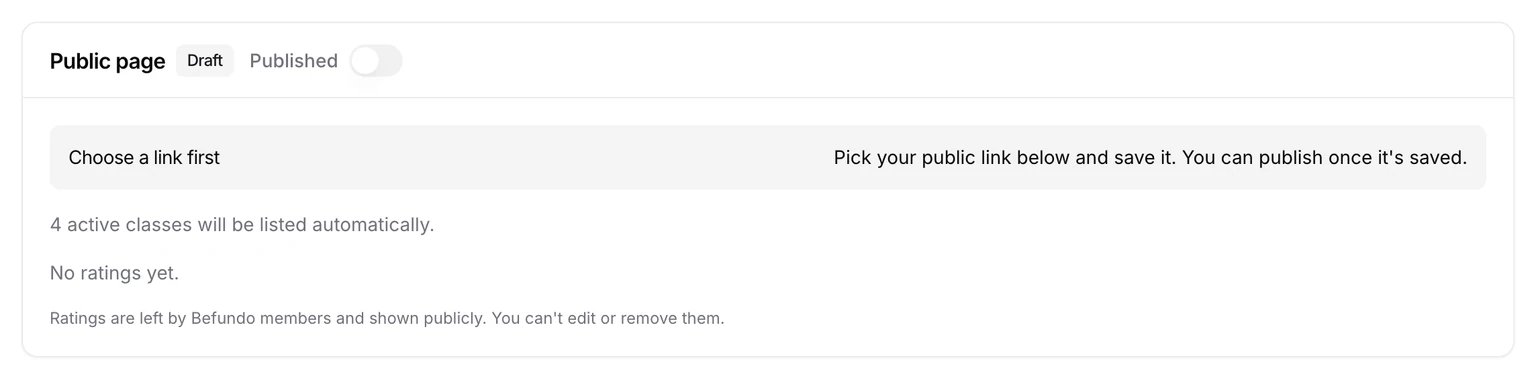
The page shows your About text, your classes, quotes you've chosen, reviews from families who took a class, and how to contact you.
Add the widget to your site
- In your business menu, open Integrations.
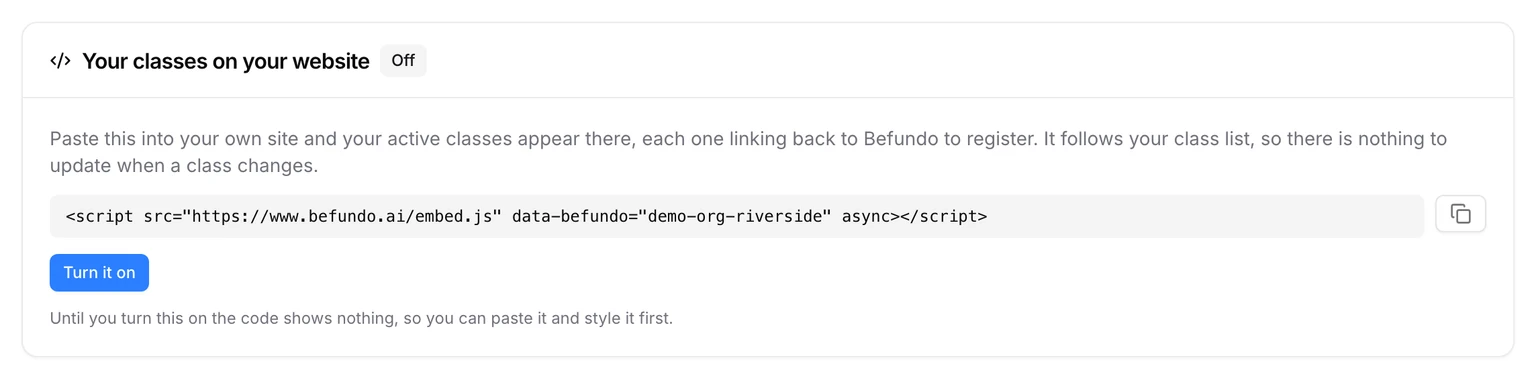
- Under Your classes on your website, press Copy the code and paste it into your site.
- Press Turn it on.
Until you turn it on, the code shows nothing, so you can paste it and style the page first. Each class appears with its picture, name, age range, where it runs and its price. Each links to its Befundo class page, where families register.
The widget can also be switched off for everybody from Befundo's side. If it ever shows nothing although it's on, that's why.
Make the page work
- Write the About as if to a parent deciding in two minutes: who teaches, what, where, and for which ages.
- Use real photos of your space. The first becomes the banner. A room, equipment or your team at work tells a family more than a logo.
- Add a few quotes under What families say. They're labeled as chosen by you, and don't affect your rating, which comes only from families who took a class.
Where to share it
Put the link in your website's menu, your social media bio and the signature of your emails. Every class on it links to its own page, where families register without writing to you first.
Common questions
Does the widget need the landing page published? No. They're separate: the widget shows your active classes whether or not your page is published.
Can I change my link later? Yes, but changing it breaks any link you've already shared, so pick one you'll keep.
Publish yours
Open Landing page in your business menu, choose your public link, and switch on Published.