 ™
™Two children, two activities, one car
The Befundo team · April 8, 2026 · 2 min read

The logistics are the visible problem: two children, two places, one adult, overlapping times. Families get remarkably good at solving that.
The problem underneath is quieter. It's about whose activity keeps getting sacrificed.
The quick answer
- Count, over a term, whose activity got dropped. It's rarely fifty-fifty.
- Same place, different times is worth more than the ideal class twenty minutes away.
- Keep one calendar the whole household can see, children included, with a color for each child.
- Say the trade-off out loud.
The arithmetic nobody does
Over a term, count how often each child's activity was the one dropped for illness, traffic, a work meeting or the other child's game. It's rarely fifty-fifty. The child on the wrong side of it usually notices long before anybody says so.
It isn't deliberate. It follows from small, sensible decisions: the one further away, the one with a fixed team commitment, the one who complains less. That last one is the trap.
Things that genuinely help
Same place, different times. Worth more than the ideal class an extra twenty minutes away.
A shared calendar the whole household can see, including the children. A nine-year-old who can see the week stops asking about it. On Befundo, your dashboard's calendar holds every child's classes, each child in their own color, and each child's page has their own.
One protected slot each. Whatever else moves, this one doesn't.
Say the trade-off out loud. "We're missing yours this week because of the tournament, and next week we'll miss theirs" is a fact a child can accept. An unexplained pattern isn't.
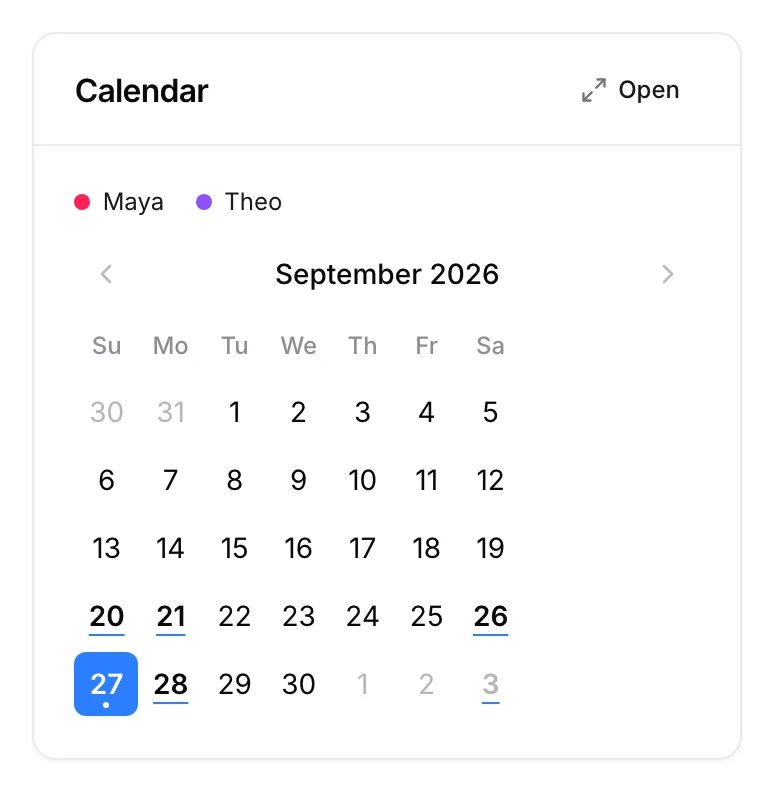
Give each child a color
- Open the switcher at the top of the menu and choose a child.
- Open the menu beside their name and choose Edit.
- Pick their color.
Their classes then show in that color on every calendar in the household.
Children are far more tolerant of an unfair week than of a fair-sounding explanation that doesn't match what they can see.
Set it up
Choose a child in the switcher on your dashboard, open the menu beside their name, and choose Edit to pick their color.