 ™
™Your class, live
The Befundo team · September 11, 2026 · 3 min read
A class taught online in Befundo's own room doesn't need a separate meeting link. It starts from the class itself, and families join from the places they already look each day.
The quick answer
- The room opens five minutes before the class, for everybody. Start is off until then.
- The teacher presses Start once. That starts the class and opens the room.
- Families press Join from Today on their dashboard, the class page or the meeting page.
- An empty room closes itself after ten minutes.
For the teacher
- Five minutes before the class, open your dashboard. The class is on the Today card with a Start button. The same button is on the class page.
- Press Start. You're in the room.
- Teach. Use Whiteboard to draw for everybody, or share your screen for slides.
- When you're done, press End session and confirm. Befundo then asks you to take attendance and, if the class has summaries on, to check the summary.
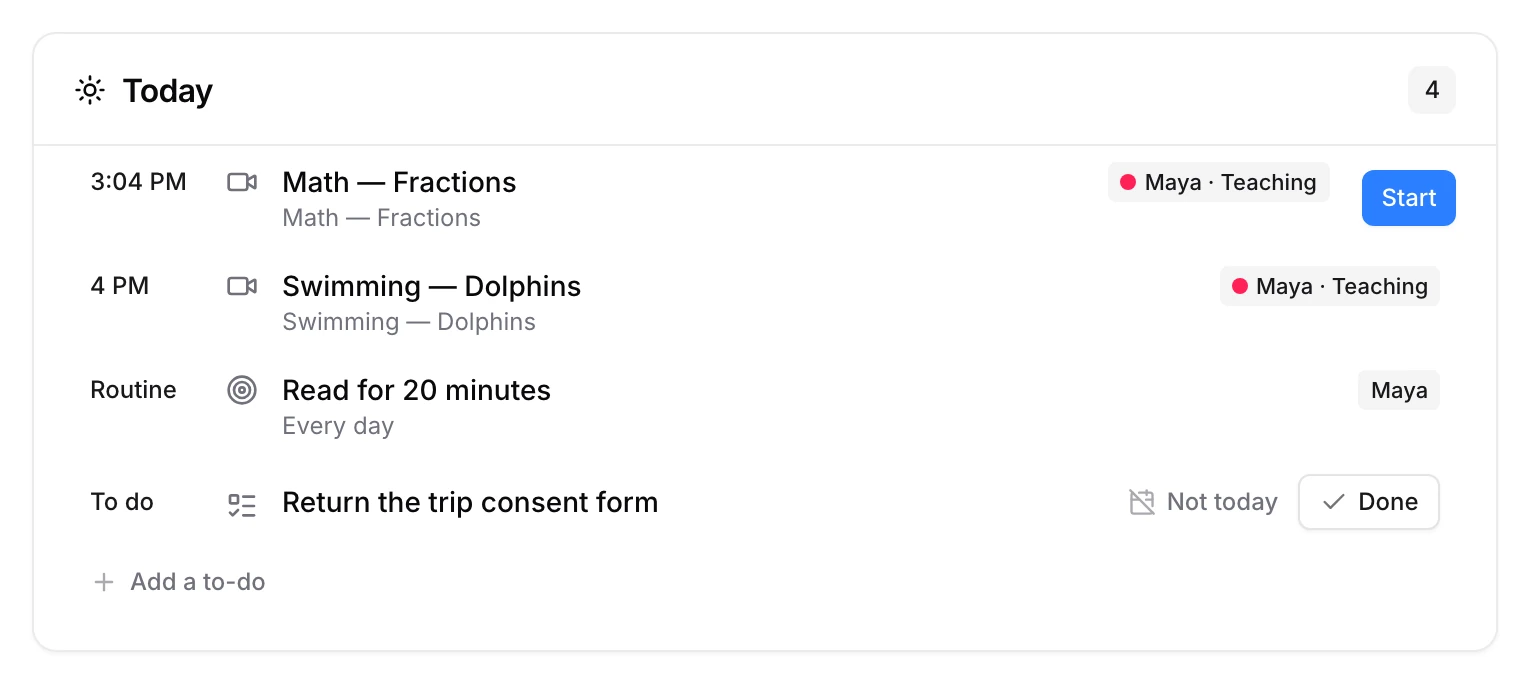
Earlier than five minutes, the button reads Start opens 5 min before. Nobody can open the room early, so no child waits alone in it.
For families
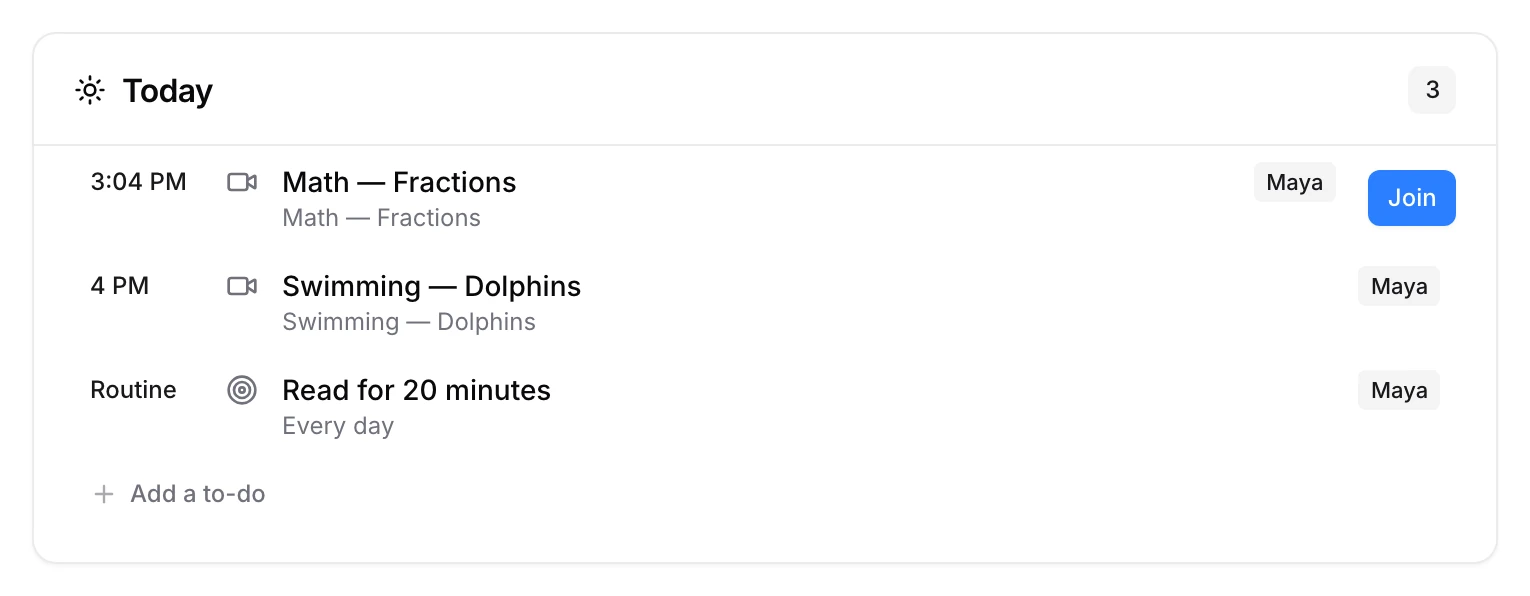
Once the teacher has started, Join appears on your dashboard's Today card, on the class page and on the meeting page. Press it, allow your camera and microphone, and you're in.
If the class has AI summaries switched on, you'll first see Sessions are transcribed. Press I agree before your child's first session to join from Befundo.
The whiteboard
Only the teacher has the whiteboard button, and everybody sees the board the moment it goes up. It's sharp on any screen, because the drawing itself is sent rather than a video of it. Whiteboard or share screen? explains when to use which.
When the room closes
A room that has been empty for ten minutes is over, whether everybody left or nobody came. Ending the session yourself is still the tidy way to finish, because that's when Befundo asks for attendance.
Before your first live class
- On the class, press Edit class and check that its Format is online and its Video is Befundo.
- Try your camera and microphone in your browser before the first session, not during it.
- Tell families the room opens five minutes before, so nobody arrives early to a closed door.
If you teach on Zoom, Meet or Teams
You don't have to use Befundo's room. Put your own link in Meeting link on the class, and families in that class see it. It's never on your public page. Befundo won't take attendance for a call it doesn't host, so you mark attendance on the meeting page as you would for an in-person class.
Run your next class live
Five minutes before your next online class, open your dashboard and press Start on the Today card.